

Logbook Configuration
Ingenuity Logbook module enables creation of sub-Logbooks. Sub-Logbooks enable recording data using custom forms different from the main Logbook but recorded withing the main Logbook instance.
3.1 Creating a Logbook
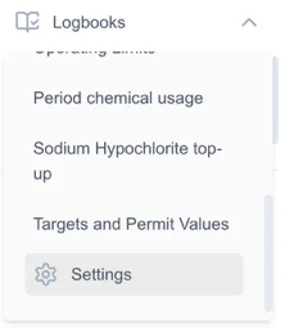
Section titled “3.1 Creating a Logbook”From the side menu, click Logbooks/Settings.
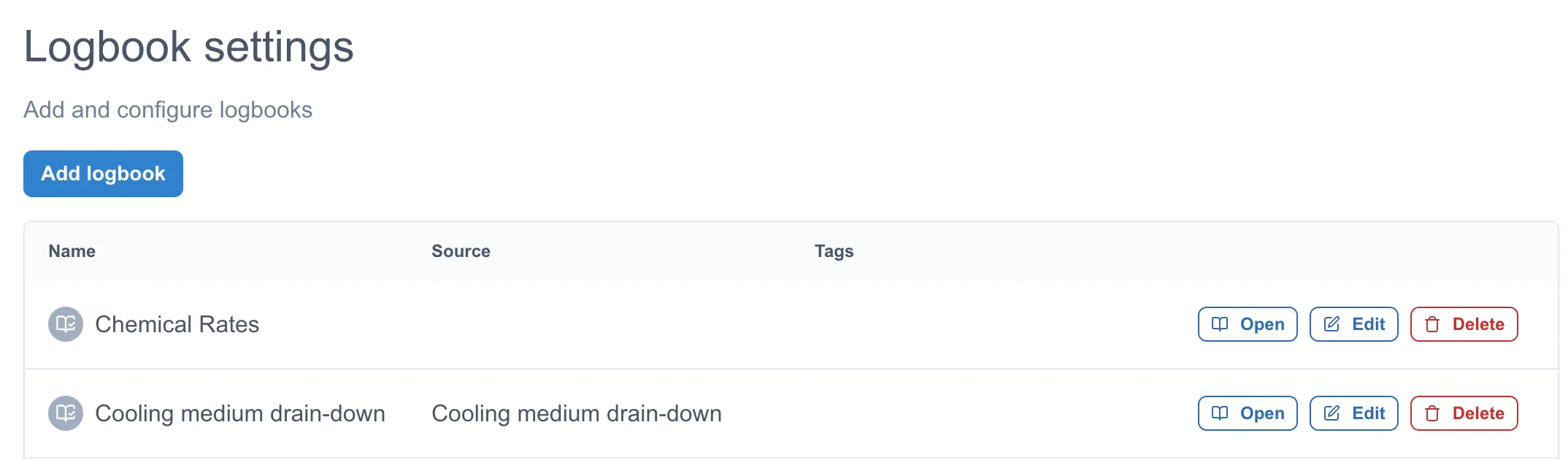
From the settings page click Add New Logbook button
In the ‘Add New Logbook’ page, fill in the fields, then click the Add button:
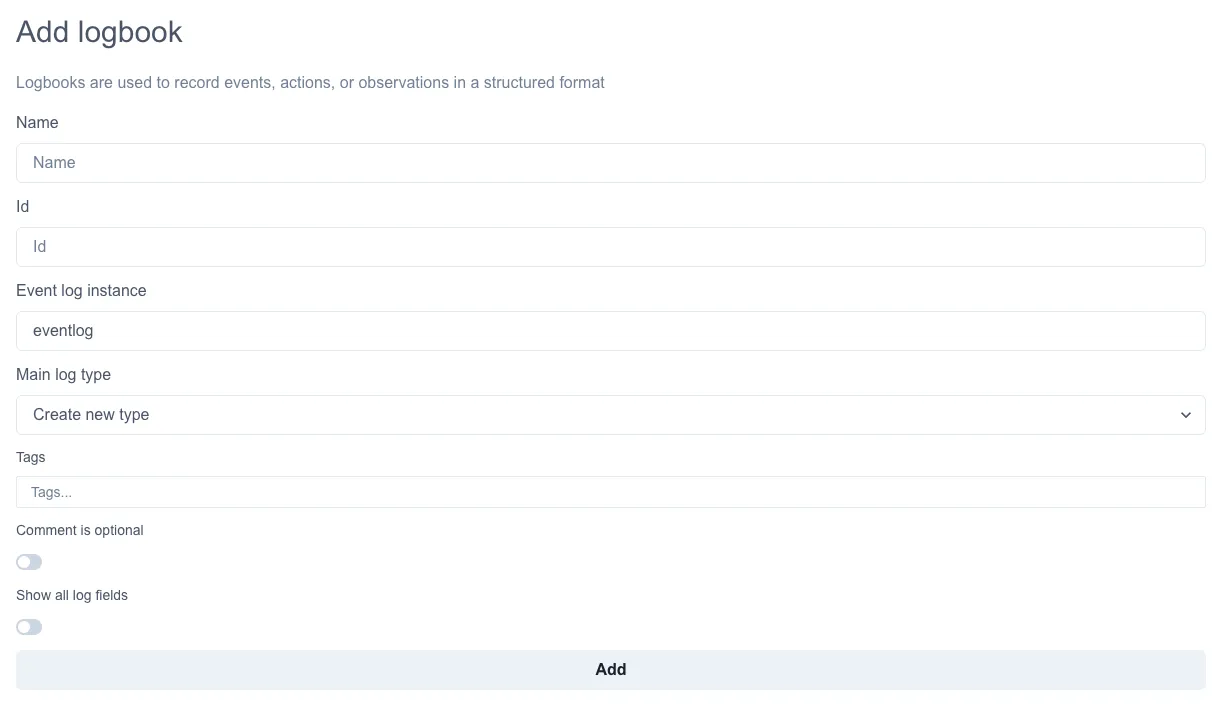
Display Name
Section titled “Display Name”Enter the Logbook instance name. This name will be displayed on the Logbook page and the menus.
By default, ID is constructed from Display Name and spaces are replaced with dashes. This can be overwritten by the user.
Main Log Type
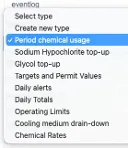
Section titled “Main Log Type”For main Logbooks, leave the Main Log type as the default setting “Select type” or “Create new type”
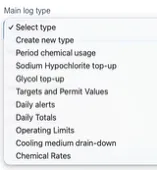
However, if you are creating a sub-logbook of another Logbook instance then select the parent main Logbook from the dropdown.
See creating a sub-logbook section for more information on creating sub-logbooks.
Adding a tag in this section will show as a default tag when adding a new entry.
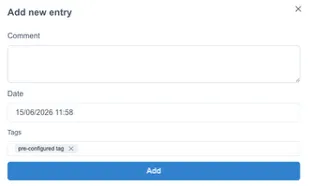
Toggle Options
Section titled “Toggle Options”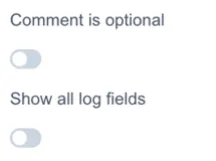
Comment is optional – By default, comments are required before submitting a new entry. This can be toggled with the “Comment is optional”. This enables the comment field to be optional to users when adding new entries.
3.2 Creating a Sub-Logbook
Section titled “3.2 Creating a Sub-Logbook”Ingenuity Logbook module enables creation of sub-Logbooks. Sub-Logbooks enable recording data using custom forms different from the main Logbook but recorded withing the main Logbook instance.
To create a sub-logbook, follow the steps in the creating a logbook section but for the Main Log type, select the parent logbook that you would like to put your sub-logbook in.
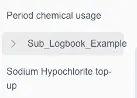
A sub-logbook will show under it’s parent logbook.
In logbook settings, the sub-logbook source will the show parent logbook.
Tags
If the instance is a sub-Logbook enter the reference Tag. The tag will be exposed as the field selection in the main Logbook
