
3.5 Number
After dragging a number widget to the dashboard, you can open the Value section in the right-side menu to add a value to this number.
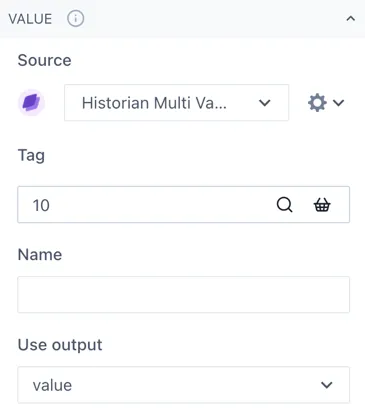
If you wish to have a fixed value, just type the number under Tag. Otherwise, you can click on the magnifying glass to open the edit tag window. If you click on the Search tab you can look up a specific tag or you can start a calculation under the Calculation tab. If you are searching for a tag and cannot find it, verify you have the correct data source under the Value section of the widget menu.
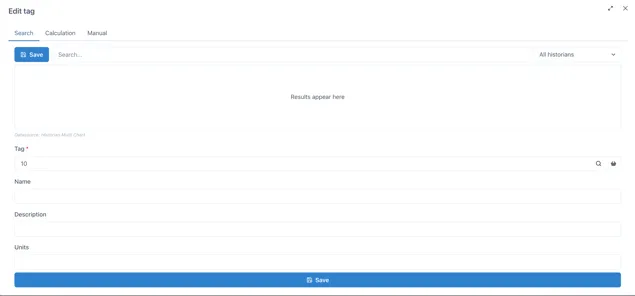
Name will be like a nickname for the tag or calculation you are using, to make it easier to identify rather than having to remember tag numbers. You can change the Name, Description and Units of each number you add.
Going back to the widget menu, under the Format Value section you can adjust the style of your number as well as the decimal places shown, the alignment, thickness, size, etc. Under format units you select if you wish to display the units of the number and how to display them.