
Creating a Dashboard
2 Creating and editing dashboard
Section titled “2 Creating and editing dashboard”2.1 How to create a dashboard
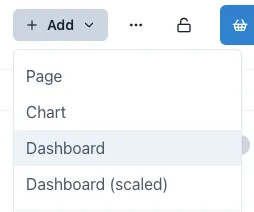
Section titled “2.1 How to create a dashboard”To create a dashboard, open the workspace you wish your dashboard to be under, click the Add button on the top right of the page and select the type of dashboard you wish to add.
2.2 Editing a dashboard
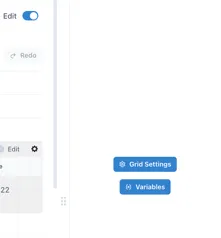
Section titled “2.2 Editing a dashboard”When you first create a dashboard, it will open in Edit mode. To put a dashboard in Edit mode at any other time, just click the “Edit” toggle in the top right corner. A configuration panel will appear on the right hand side.

2.3 Selecting, Moving and Grouping objects
Section titled “2.3 Selecting, Moving and Grouping objects”2.3.1 Selecting individual and multiple objects
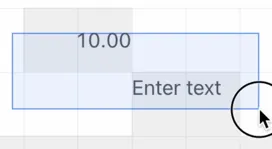
Section titled “2.3.1 Selecting individual and multiple objects”To select an object, move the mouse pointer over it and click once. To select multiple objects, either hold down the shift key while you click on each one, or click and drag the mouse pointer to draw a box over them:
2.3.2 Moving objects
Section titled “2.3.2 Moving objects”Objects can be moved when the mouse pointer is within the boundaries of the component and the pointer has changed to a “move: icon - a 4-pointed arrow. Click on the object and hold to move it around as you would with any other drawing package.
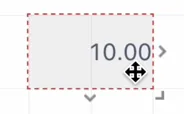
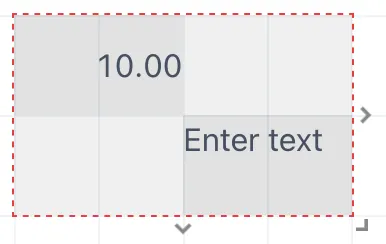
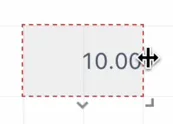
To resize an object, move the mouse pointer over one of the 3 ”>” markers on the right, bottom or bottom right and the cursor will change to a “resize” icon — a two headed arrow in the directions the component can be resized:
When multiple objects have been selected, the right hand panel automatically changes to the alignment tools:
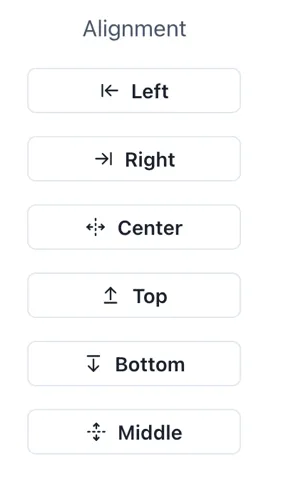
These are especially useful in a scaled dashboard where there is no grid to aid alignment.
Right-clicking on a selected object brings up a shortcut menu with available options:
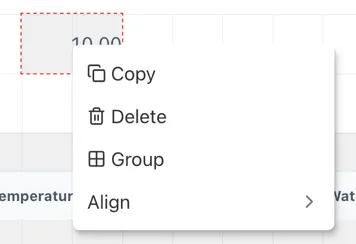
The Group and Align options only appear when more than one object is selected at the same time.
2.3.3 Grouping objects
Section titled “2.3.3 Grouping objects”Clicking the “Group” option automatically adds a Group component with the selected components in it.