

3.18 Live Control Widget
The Live Control widget works similarly to the live settings toolbar, letting you control the timeframe of connected widgets on a dashboard. Unlike the toolbar, however, you can add multiple Live Control widgets to a single page, with each one linked to specific widgets via tags rather than inheriting its timeframe from a parent toolbar.
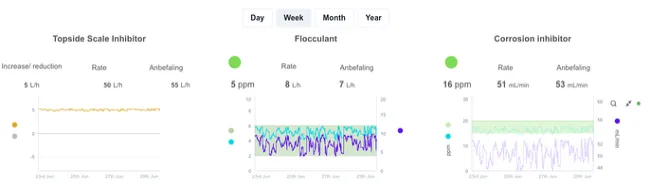
This is useful when you want quick, dedicated buttons for common timeframes, for example, Day, Week, Month, or Year, that apply only to a chosen subset of widgets on the page.
To add the Live Control widget to your dashboard, drag and drop from the widget menu onto your dashboard.
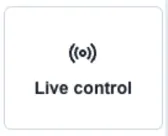
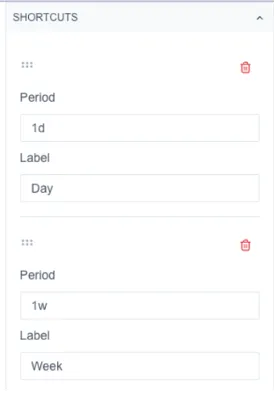
For each button you want to add:
- Add a new shortcut.
- Period – enter the time period to associate with the button (see Valid Time Units).
- Label – add a label to display on the button.
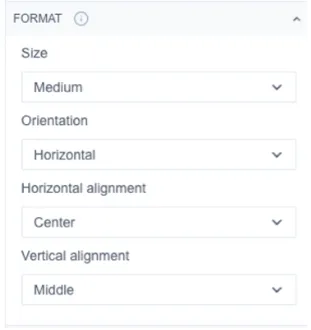
Formatting the buttons
- Size – Extra Small, Small, Medium, Large.
- Horizontal alignment – Left, Centre, Right.
- Vertical alignment – Top, Middle, Bottom.
- Orientation – Horizontal, Vertical.
Connecting buttons to components
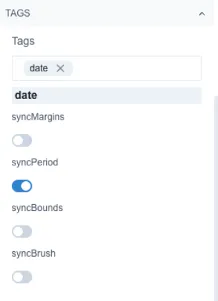
Section titled “Connecting buttons to components”To link a Live Control widget to other widgets on the page, give it the same tag as the widgets you want it to control (e.g. “date”). Any chart tagged with “date” will respond to the buttons.
Select Sync Period to keep connected widgets’ timeframes synced with the buttons.
You can add multiple Live Control widgets to a page, each linked to a different tag, to control different groups of widgets independently.