

Adding a New Field
4.1 Adding a new Field
Section titled “4.1 Adding a new Field”Once a Logbook instance is created custom fields can be added to the set of the standard fields. Each field will show their field type next to the name e.g. Chemical Function (select-from-variable).

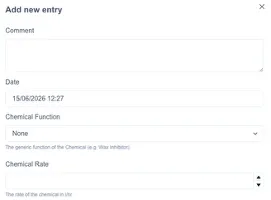
This allows you to add custom fields to your Add New Entry form.
For example:
To add a new field, click Add Field within the edit logbook layout.
This will open a data entry window to add a new field.
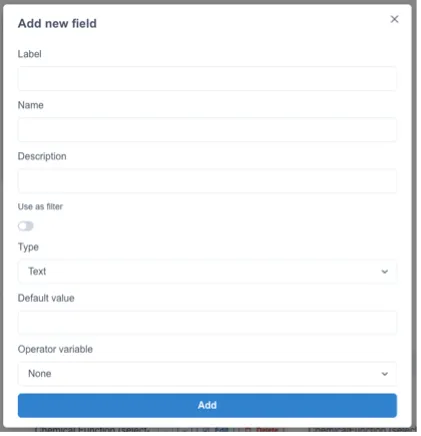
The required attributes for all fields are as follows:
Label

Public facing/aesthetic purposes.
Name of Field

This will act as a variable name/ID.
Description
Adding a description to describe the field you are adding.

When adding a new entry it will show the description under the field.

Use as filter
To designate custom field as a filter and add it to the filter bar click ‘Use this field as filter’ in the field definition

The field will then appear in the filter bar next to the standard filters.

Type
This will determine which type of input data you receive.
Choose from the following types:
- Text
- Number
- Checkbox
- Select
- Multi Select
- Date
- Time Select
- Select from Variable
- Calculated from Data source
Refer to Field Types section for more details.
Default value
Add a value to set as the default value in the submit an entry form.
This field is optional.

Once you have finished configuring your field press Add.
