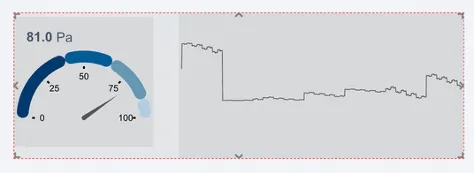

3.20 Group
The group widget allows you to group several widgets by putting them inside the group widget. Once they are inside the group widget, you can move the group widget in the dashboard and relocate all the widgets inside it easily. This is ideal when you have several text, numbers and indicators widgets you wish to move or copy, since you can copy a group widget with all the widgets inside it rather than doing so individually. This works for all the widgets, graphics and lines inside the group widget.
To add your group widget, drag and drop from the widget menu.
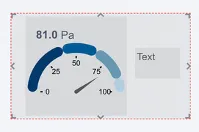
To group items, drag and drop your items inside the group widget.
You can also group items without the group widget by right-clicking on the selected items you’d like to group and select “group”.
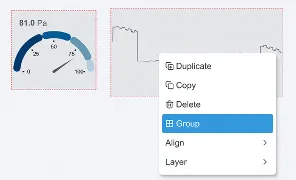
This will appear the same way as if you had put your components into a group widget and the size can be adjusted the same way.