

3.25 Asset Control Widget
Asset Driven Dashboards let you dynamically drive a dashboard from an asset model, so you can build dashboard content just by dragging and dropping items from an asset rather than configuring each widget manually. Refer to Asset Model section for an introduction to asset models.
This is useful when a dashboard has a small number of properties you want to template for example, when navigating between wells, where you want to easily switch the entire dashboard between data from Well A or Well B using a single control.
Adding the Asset Control widget
Section titled “Adding the Asset Control widget”There are two ways to add the Asset Control widget to your dashboard:
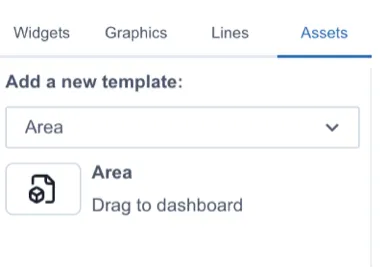
Option 1: From the Assets menu – click the Assets menu on the left-hand side, select a template, and drag the Asset Control widget directly onto your dashboard. See Assets section.
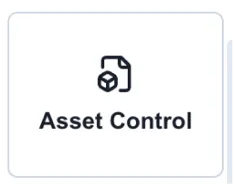
Option 2: From the widget menu – drag and drop the Asset Control widget onto your dashboard.
Then select a template from the settings panel on the right, under Asset Options.
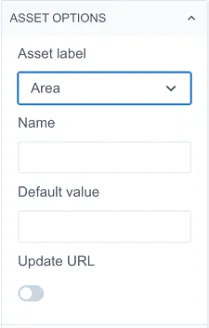
Update URL
Section titled “Update URL”Enabling Update URL passes the current variable selection into the page URL. This allows you to create hyperlinks from other pages that link directly to this dashboard with the relevant filters pre-selected.
Using the Asset Control Widget
Section titled “Using the Asset Control Widget”Once added to your page, the Asset menu, under existing templates displays a dropdown containing the options preconfigured in the selected template.
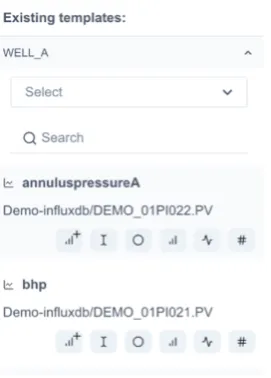
Expanding the dropdown shows the properties available in the template. Each can be dragged onto the dashboard as a specific widget type, indicated by its icon:

- Hashtag (#) – drag as a number value.
- Sparkline icon – drag as a sparkline.
- Chart icon – drag as a chart.
- Circle – drag as an indicator.
- Text icon “I” – drag as a text widget.
- Chart icon with a plus – add another tag to compatible widgets.
Connecting to a widget from the widget menu.
Section titled “Connecting to a widget from the widget menu.”If you want to use the widget menu rather than the asset menu, drag a normal widget onto your dashboard, then in the value section click the variable button (shown as a box icon).
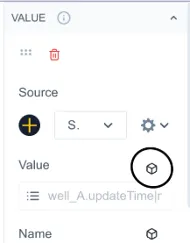
This displays the related properties available from the asset model. Select one to bind it to that widget.
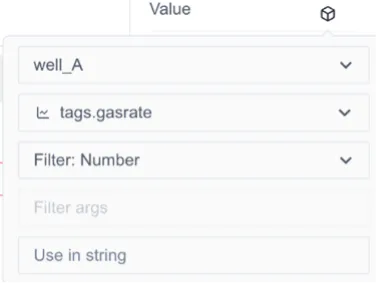
For information on using an attribute in a calculation and using other properties and relationships in the knowledge graph see Assets section