
3.21 Data Table
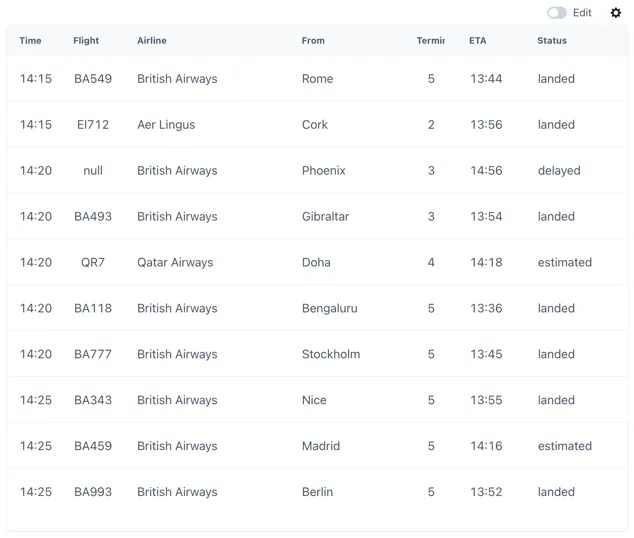
Data tables are ideal for displaying different data or parameters from one single data source. Next is an example of what a data table looks like out of edit mode.
To set up a data table first you select your data source in the Source section of the widget menu, depending on the source you select you might have to type more information such as an airport code if you are displaying flight data.
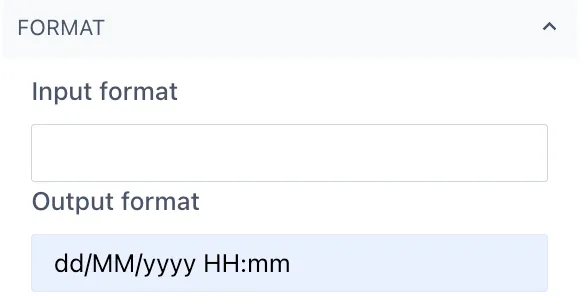
Next you should go to the Columns section in the menu and select Add column. The name will be the column name, and you can select the primary output option of this column. Under Type is important to match the type of data you wish to display from this column, for example Date or Text. If you are selecting Date, remember you can set the date format under the Format section under the date column.
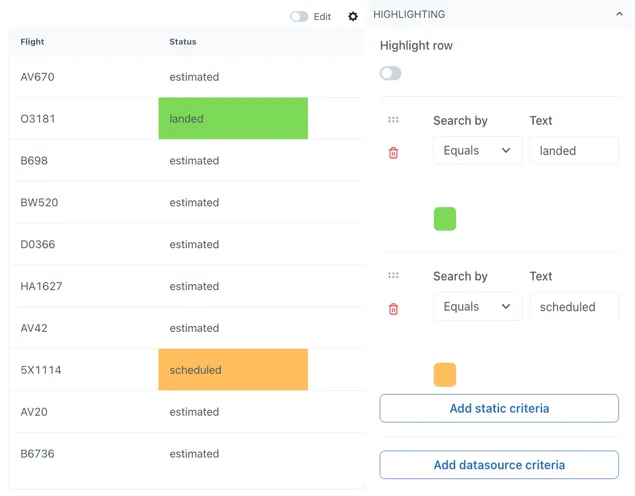
You can add highlights to your table when the value in a row from that table matches your criteria. Criteria can be static or based on a data source, and it is case sensitive when working with text values.