

3.1 Intro to Widgets
3 Adding content to dashboards
Section titled “3 Adding content to dashboards”3.1 Widgets
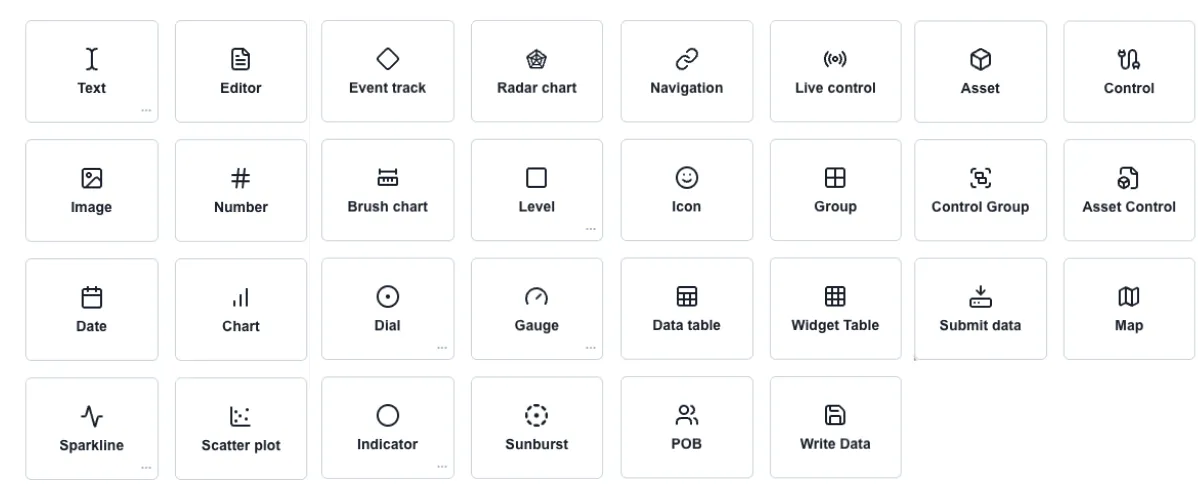
Section titled “3.1 Widgets”While on edit mode in your dashboard, you will see the Widget’s menu on the left side of the page. The widgets available are shown below.
Adding a widget
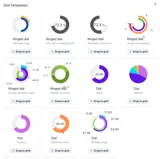
Section titled “Adding a widget”To add any widget, drag and drop its icon onto the dashboard. Clicking the three dots […] in the bottom right corner of brings up a popup of the available pre-configured templates for that component
Editing a widget
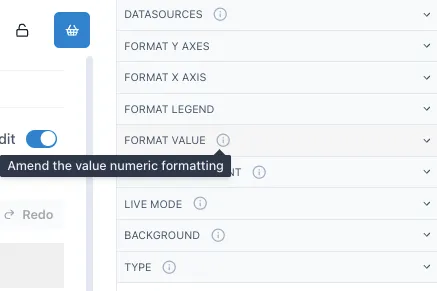
Section titled “Editing a widget”When the dashboard is in “Edit” mode, the menu on the right side will show the editing menu of the selected widget. This widget menu includes different sections you can navigate to modify the widget. A short description of each section of the widget menu can be found when hovering over the info icon on the right side of the sections.
The next sections will cover the basics on how to set up these widgets.