
3.4 Image
To add an image drag and drop the image widget into the dashboard. On the right-side menu open the Image section and then ‘Choose a new image’ to upload the preferred image. You will get a preview of the image where you can crop the image if the Fit is set to contain or select the area of the image that you want to focus on if the Fit is set to cover.
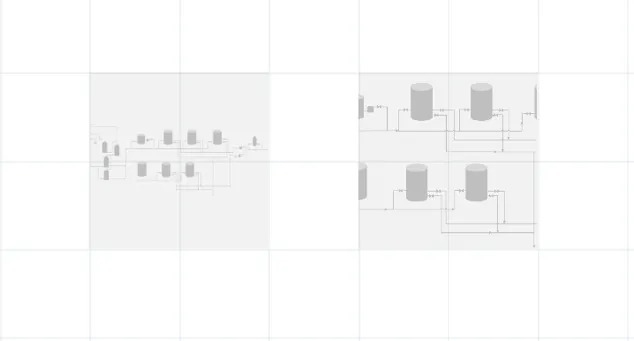
When you set an image with the Fit as contain, the image will always include the whole area selected in the preview, and if resized in a smaller size in the dashboard, it will scale the whole image to fit in this area. If the Fit is set to cover, it will focus on the area but will not scale the whole image to fit into the image size selected. The following image shows the difference between an image set as contain (left) and cover (right) in the same size.