

Setting up Variables
Variables are page (dashboard) wide parameters that allow you to pass information between components and create dynamic dashboards that update based on user input and selections.
6.1 Setting up variables
Section titled “6.1 Setting up variables”Variables are set up at the page level by clicking on the “(x) Variables” button in the right hand pane, which is visible when the grid is selected (by clicking on any empty area in the grid).
This will bring up the Grid Variables form:
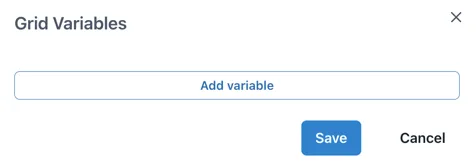
Clicking “Add variable” adds an empty variable configuration. The Name and Type fields are always present and the fields thereafter depend on the selection made in the Type field:
Name: Text input for the name of the variable. Must start with a dollar sign ($) and contain only letters and numbers. No spaces or special characters.
Type: dropdown to select where the value of the variable comes from. It has the following options:
Select: type a comma separated list of possible values directly in the variable configuration.
Multi Select: Formatted the same as the Select type but the user can select multiple options.
String: A text string entered into the variable configuration.
Number: A number is entered into the variable configuration.
Boolean: A boolean is entered into the variable configuration.
Date: A date is entered into the variable configuration
Select from Datasource output: The list of possible values comes from an Ingenuity data source.
Value from Datasource output: A boolean indicating if multiple values can be selected for this input.
User: An existing user can be entered into the variable configuration.
Default value

Add a value to set as the default value in the submit an entry form.
Update URL Toggle
Enable this to update the URL with the selected value of the variable to create a link to the state of the page that can be shared.