
3.17 Indicator
Indicators allow you to compare a tag or calculation with one or several criteria and define a status based on that. You can add a value and their criteria In the Value section of the widget menu. Both the value and the criteria can be a manual value, tag or calculation.
Indicator — Static Criteria
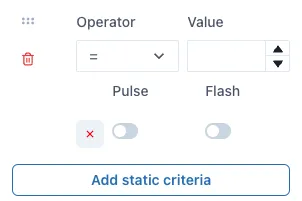
Section titled “Indicator — Static Criteria”Static criteria are fixed numbers to compare the value to. For example, ”> 5” means greater than 5. To add static criteria, select the Add static criteria and fill out for the manual criteria.
Indicator — Data source Criteria
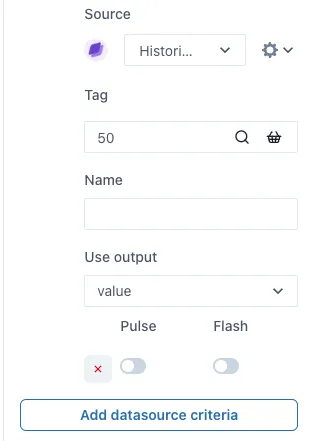
Section titled “Indicator — Data source Criteria”Data source criteria are dynamically queried from other data sources. To use a tag or calculation (or other data source) instead of a fixed manual criteria, select the Add data source criteria button.
Under the Graphic section of the menu, you will find more indicator shapes such as triangle, square, etc. and more categories of indicators with different shapes within them.
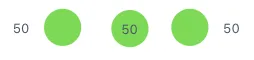
When working with graphics, it is useful to display the value that you set to the indicator. You can do this by activating the Show value toggle in the Format Value section of the menu. You can define the position of the value to the left, center or right of the graphic indicator.
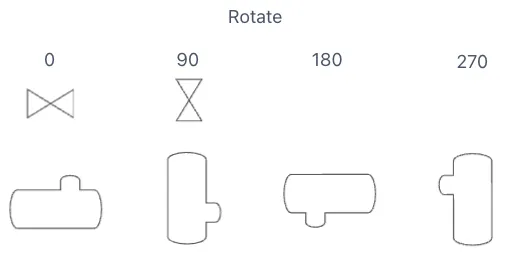
To rotate graphic indicators, you can open the Format indicator section and change the value under Rotation. Use the up and down buttons to change the rotation slightly or type in the degrees you would like the indicator to rotate. Next you have an example of the rotation of an indicator.