

3.24 Asset Widget
The Asset Widget displays a context menu of information related to a specific asset such as its properties, measurements, documents and related assets.
To add the Asset Widget to your dashboard, drag and drop from the widget menu.
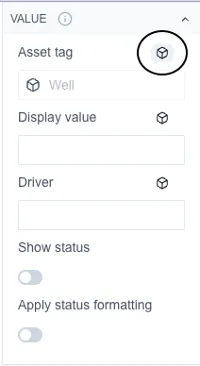
Under Asset tag, click the variable button (shown as a box icon) and choose one of the assets present on your page.
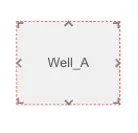
On the dashboard, the Asset Widget will display in a similar way to the Text widget and can be formatted as such. See Text widget.
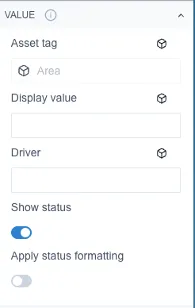
Toggle show status to show an indicator next to the Asset Widget.
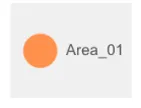
Toggle status formatting to apply the status formatting that you have added to the indicator to the text part of the widget.
Using the widget:
Section titled “Using the widget:”Outside of edit mode, clicking the Asset Widget dynamically brings up the common menu for the currently selected asset which will display any properties, measurements, documents and related assets.
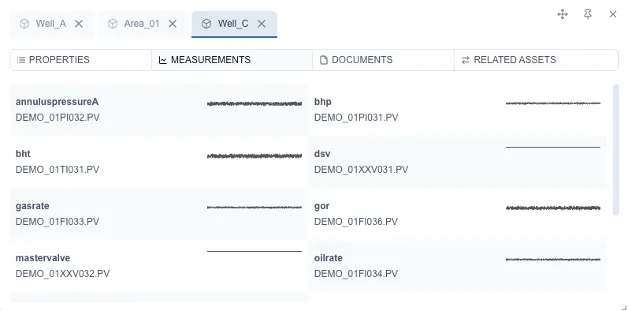
Clicking on multiple assets adds each one into the common menu as a separate tab. For example, you can click to add Well A, then switch the Asset Control widget’s selection to Well B and add it as well. This lets you switch between tabs in the common menu to compare Well A and Well B side by side.

Click the x next to a tab to remove that asset from the common menu.
Drag button – lets you drag the common menu around the screen. Pin button – pins the common menu to the side of the screen.
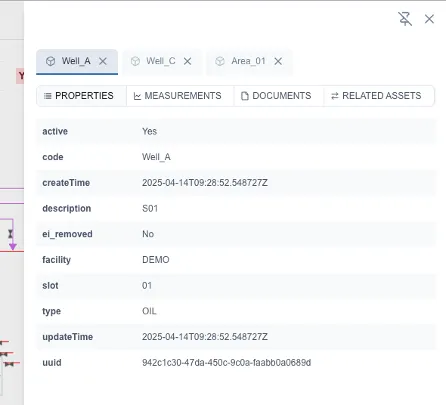
Close (x, top right) – closes the common menu. Click on an asset again to reopen it (this will also re-add that asset to the menu).
See Asset Control Widget section for more information.