

3.27 Control Group
The Control Group Widget works in the same way as the Control Widget but allows multiple variables to be grouped together and submitted at once with a single submit button.
Example: If you need two separate variables such as flight location and number of rows but want the user to submit both with one button press, use a Control Group Widget rather than two individual Control Widgets.
A control group also offers additional flexibility when working with multiple variables: each variable in the group can be marked as required or optional, and can be given a label and description.
Drag and drop the Control Group Widget from the widget menu onto your dashboard.
Under Controls, connect the control group you have previously configured.
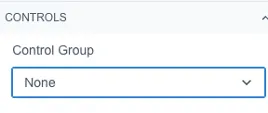
The input fields displayed in the widget are determined by the variables in that control group, for example, a control group containing two variables will show two input fields within the widget.

Formatting options are the same as the Control Widget refer to that section for details.
Connect each variable within the control group to your target widgets in the same way as the Control Widget, using the (x) icon in each widget’s settings.
You can connect all variables to the same widget (e.g. filtering a table by both flight location and number of rows), or connect each variable to a different widget so that multiple widgets all update together when the user presses submit.