

Visual Asset Diagram
A colour-coded representation of the areas or sectors of the facility.
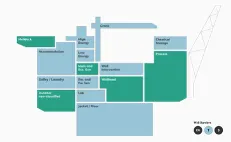
The Facility/Asset Overview page is a highly customised interface designed to provide a comprehensive summary of the status of all barrier protections on a facility in a single view. It acts as a real-time risk monitoring hub, allowing users to aggregate risk across the asset in various contexts and maintain a clear view of operational integrity.
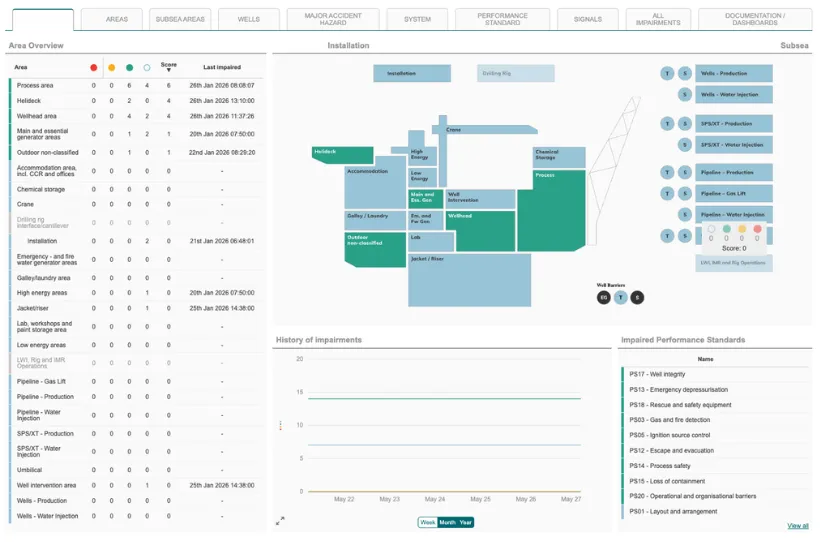
The primary purpose of this page is to offer shared operational awareness by consolidating data from multiple sources into a live, data-driven overview. It enables teams to identify impairments early and prioritise maintenance or mitigation actions based on the cumulative risk to the asset.
The Overview page serves as a gateway to more detailed technical information.
The page is composed of several interactive elements that provide both high-level and granular data such as:
Visual Asset Diagram
A colour-coded representation of the areas or sectors of the facility.
Status Tables
Summaries of Safety and Environment Critical Elements (SECEs) and barrier status.
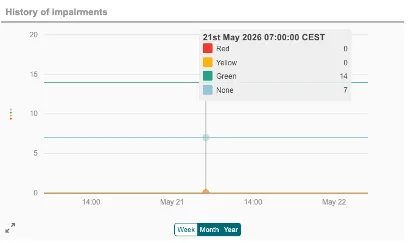
Trend Charts
Visual trend of impairment levels over time.
Key Performance Indicators
Lists of top criticalities and impaired performance standards.
See interface Components section for details on each component.
The centerpiece of the overview is a visual diagram of the installation and its areas or sectors. Refer to visual asset diagram section
Clicking on a segment of the diagram allows the user to drill down into the specific details of that area. This will take you to the area page. See section areas for details.
You may find that clicking different segments will take you to different area tabs. This will depend on how your BSP is configured and how your areas are categorised.
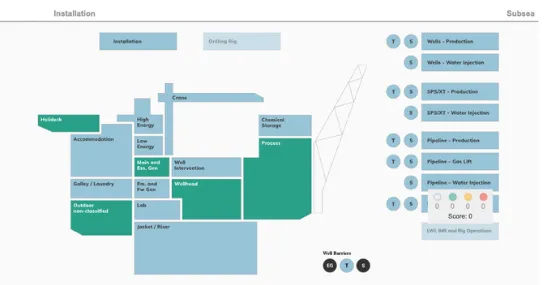
In this example, the listed segments on the right are subsea areas and direct to the subsea area page tab when clicked on. Whereas the segments on the left lead to the asset area tab and the segments at the bottom go to the wells tab.

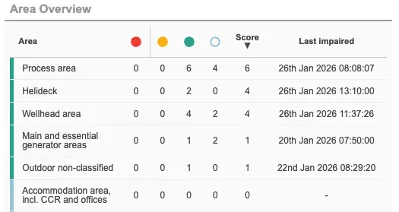
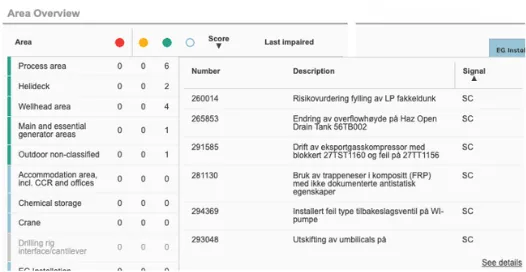
The page includes sortable tables that present the health of various protected areas.
Table Data:
Each row typically includes the:
Area name
Current safety score
“Last Impaired” timestamp
Interacting with the table:
Hover over score for this table to view signal information. Click details to be directed to the signals page. See signals section
Users can track the performance and health of barriers over time through the history section.
Presentation: This data is often presented as a trend plot, indicating the impairment severity score over time. (see charts section)
Filtering: Historical data can be filtered by week, month, or year.
Colour Coding: Impairment scores are colour-coded (typically green, yellow, or red) to show the trend of severity score throughout the selected period. If the score is not calculated based on specific business rules then the number of impairments of each type (red, yellow or green) is trended.
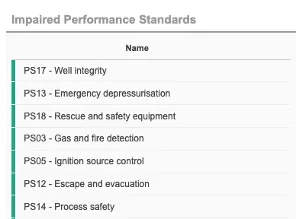
Performance Standards: The page highlights impaired performance standards by name. Clicking on these allows users to navigate directly to the dedicated Performance Standard page. See performance standards section.
Clicking view all will direct you to the performance standard page with all the impaired performance standards listed.