

Logging in and Navigating
How to access the system (URL / app)
Section titled “How to access the system (URL / app)”The BSP is a web-based application accessed via a URL provided by your system administrator. No installation is required.
Login steps
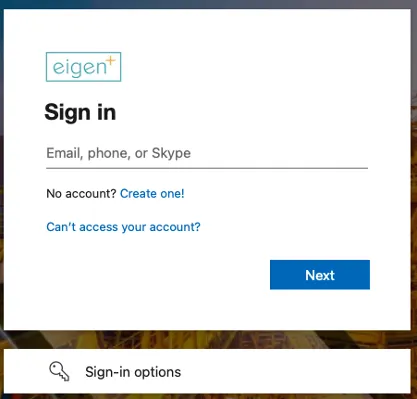
Section titled “Login steps”Login is integrated with Microsoft Azure Active Directory. Users sign in using their own organisation’s credentials.
Alternative authentication methods can be configured where Azure SSO is not available or not preferred, including direct email/password login. The authentication method is configured at the instance level during deployment.
Forgotten password / SSO if applicable
Section titled “Forgotten password / SSO if applicable”Where Azure authentication is in use, password resets and account management are handled entirely by Microsoft. Contact your IT department for assistance. Alternative authentication methods may be configured depending on your organisation’s setup.
For non-Azure deployments, password resets can be managed by the Administrator via the user management interface.
User Permissions
Section titled “User Permissions”Overview of permission levels / roles
Section titled “Overview of permission levels / roles”Administrator: Installs data sources, manages user roles, and monitors system health.
User: Navigates dashboards, views barrier status, and generates reports.
How permissions are assigned
Section titled “How permissions are assigned”Permissions are assigned by an Administrator via the settings menu.
Navigation
Section titled “Navigation”Overview of the interface layout
Section titled “Overview of the interface layout”The BSP uses the Ingenuity 7 navigation structure. The main areas of the interface are:
- Left-hand menu — lists all available pages for the current workspace.
- Top bar — contains filters that can be applied across pages.
- Main content area — occupies the central and right portion of the screen, displaying page content, tables, diagrams, and charts.
Filters can be persistent — applying across all pages as you navigate — or page-specific. Different assets are assigned separate workspaces, so users will only see data relevant to the asset they are currently viewing.
In some configurations of the BSP, the menu is at the top rather than the left. This manual may refer to different configurations as examples, so please keep that in mind.
Please note: Page names will be different depending on your BSP configuration.
Site menu
Section titled “Site menu”What is on the site menu?
Section titled “What is on the site menu?”All pages are accessible from the left-hand menu.
In some configurations of the BSP, the menu is at the top rather than the left. This manual may refer to different configurations as examples, so please keep that in mind.
How to use the site menu
Section titled “How to use the site menu”Clicking a page name navigates directly to that page. The menu remains visible at all times, allowing quick movement between sections of the barrier model.
Pages overview
Section titled “Pages overview”The BSP is organised into a set of purpose-built pages, each providing a different view of the barrier model:
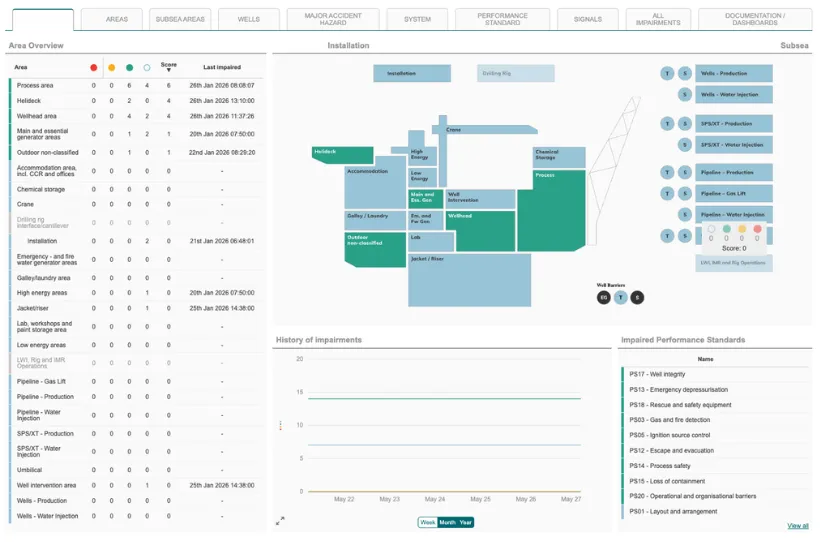
- Area Overview — top-level view of the asset, showing all barrier strategy areas and their current status.
- Areas — detailed view of an individual barrier strategy area, including its barriers and contributing elements.
- Barrier Functions — view of barrier functions, their status, and associated elements.
- Operational Barriers — view of procedural barriers including competency, training, and control of work.
- Signals — view of all active input signals currently being processed by the system.
- Performance Standards — status of all performance standards, grouped by category.
- Systems — barrier status organised by engineering system.
- Major Accident Hazards — barrier status organised by hazard.
- All Impairments — a filterable list of all current impairments across the asset.
- Documentation — access to documents associated with the barrier model.