
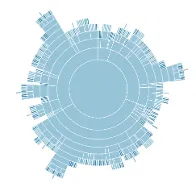
Sunburst Display
Barrier overview in a sunburst display format.
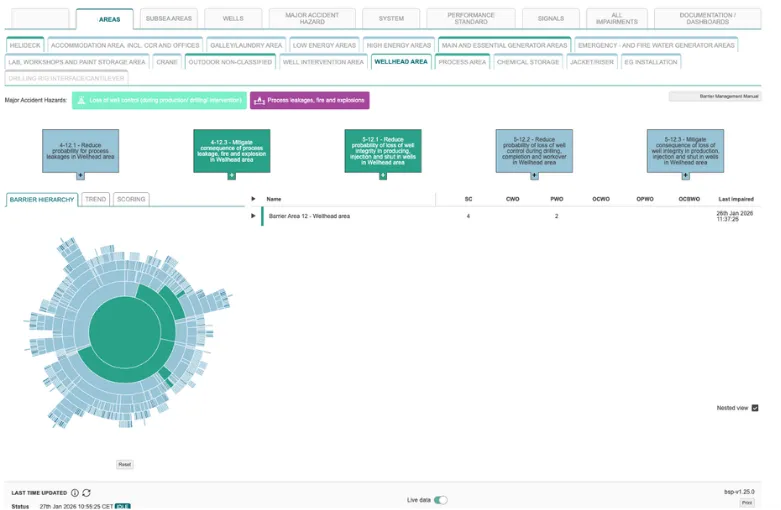
The Areas section of the Eigen BSP provides a detailed drill-down into specific segments of a facility. This view allows users to move from a high-level asset overview to a granular inspection of the health and relationships of safety barriers protecting a particular zone.
Users can navigate to individual areas directly from the Asset Overview page by clicking on a segment of the visual asset diagram or selecting an area name from the status table. See Facility/Asset Overview section
Each page is typically composed of several interactive elements that provide both high-level and granular data such as:
Sunburst Display
Barrier overview in a sunburst display format.
Hierarchial Scoring Tables
Barrier overview in a nested tabular format.
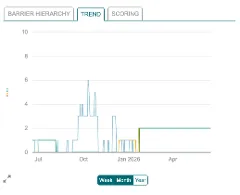
Trends/Charts
Visual history of impairments over time.
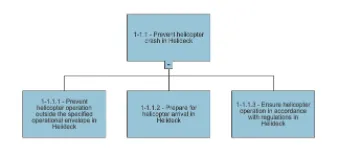
Bowtie Tree view
Flowchart representation of barriers.
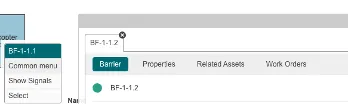
Common Menu
Everything known about a BSP component.
See Interface Components section
Top Navigation: For assets with complex or geographically separated sections, such as subsea installations, users can switch between these major segments using the navigation menu or drop-down selectors at the top of the interface.

Drill-down Capabilities: The interface is designed to facilitate easy navigation through the asset hierarchy, allowing users to move between the total asset view and specific protected areas.
Major Accident Hazards
For each area there will be a list of relevant Major Accident Hazards (MAHs)

Clicking on one of these will take you to the Major Accident Hazard page for that specific area. Refer to MAH page section
The Sunburst is a primary visual tool used at the area level to help users understand the hierarchical relationship between different barrier functions.
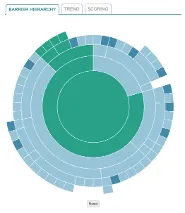
Hover: Users can move the mouse over the periphery to see specific SECE details.
Selection: Clicking on the centre of the sunburst allows the user to navigate upwards through the asset hierarchy. Clicking on the outer sections of the sunburst takes you downwards in the hierarchy. Refer to sunburst section.
Visual Hierarchy: The center of the sunburst represents the protected barrier area. As you move outward, the rings represent barrier functions, sub-functions, and sub-barriers.
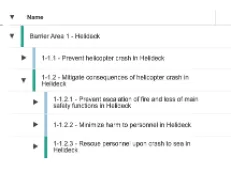
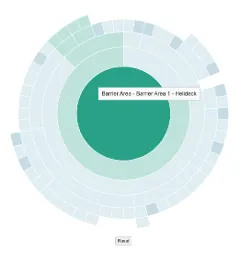 Barrier Area: e.g. Helideck
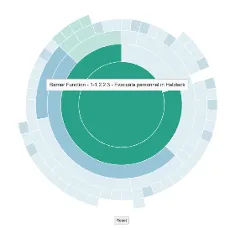 Barrier Function: e.g. Evaculate Helideck
Periphery Elements: The outermost edge of the sunburst displays individual Safety and Environment Critical Elements (SECEs) or barrier elements.
|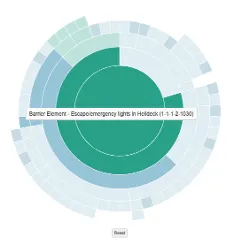 Barrier Element: e.g. Emergency Lights in Helideck |
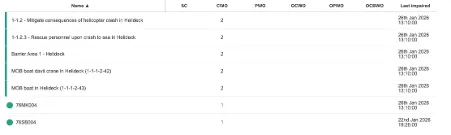
The Scoring Table provides the same data as the sunburst but in a nested tabular format, catering to user preference for data navigation.

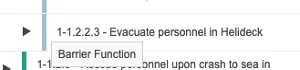
Nested View: Users can drill down through different levels of protection by expanding rows in the table.
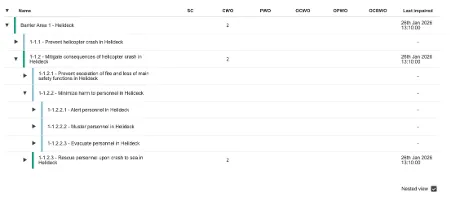 Hovering over each component will state if it is an area, barrier function or barrier element.
The table displays the number of active signals for each element, which can include:
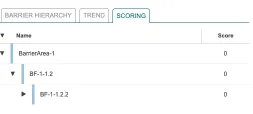
This hierarchy table can also just present the overall score see scoring section.
The trend section provides a visual history of how impairments in the specific area have behaved over time.
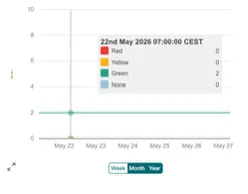
Timeframes: Data can be filtered to show trends for the last week, month, or year.
Colour Coding: Impairments are colour-coded (typically green, yellow, or red) to show the frequency and severity of issues throughout the selected period.
Refer to charts section for more information on this component.
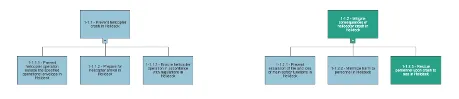
In some configurations, the area view includes a tree view of the preventative and mitigating elements of the area bowtie diagram.
Preventative and Mitigating Barriers: This display shows preventative barriers on the left side and mitigating barriers on the right side of the major accident hazard.

You can click to expand the bowtie.
Real-time Status:
Each barrier element within the bowtie is colour-coded to reflect its current health, and users can drill down into these elements to view the specific subfunctions and protective functions supporting them.
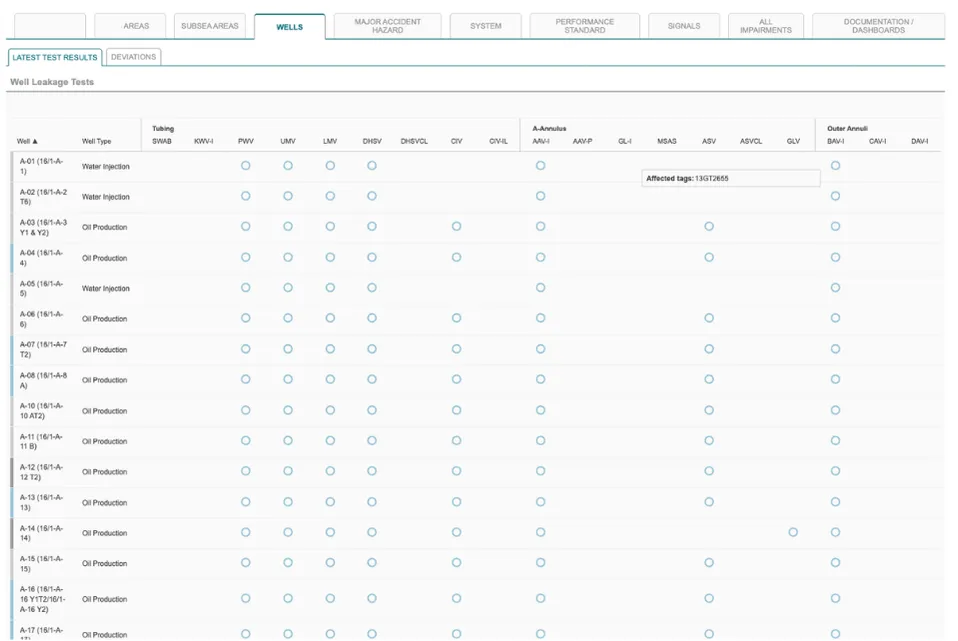
Depending on your BSP configuration you may have area pages that look different, for example for the Wells Area, a table of integrity checks on each well is displayed.
Well Integrity is managed by specialised applications, reporting the status to the Eigen BSP. Integrity checks for each well on the tubing and annuli are organised in a matrix, as shown above.
The purpose of the Well Area view is to provide an overview of the well integrity status of all wells in the facility, but any details need to be investigated in the well integrity application.
The “Deviations” tab provides a list of Non-Conformances identified in the well integrity application.