

About Barrier Status Panel
What is Eigen BSP?
Section titled “What is Eigen BSP?”The Eigen Barrier Status Panel (BSP) is a sophisticated barrier management software application built on the Eigen Ingenuity 7 platform, leveraging Digital Twin technology to provide a unified, real-time visualization of protective functions, known as Safety Barriers.
The process of creating a barrier status panel typically consists of
- Identifying failures, hazards and accident situations
- Identifying barrier functions
- Identifying barrier elements
- Establishing performance requirements
- Maintaining the performance of the barriers.

Who is it for?
Section titled “Who is it for?”It is designed for anyone with a responsibility for, or interest in, the health of safety barriers including Asset Managers, Operators, Owners, Discipline Engineers, and Team Leads. Different roles can interact with the system in different ways: a Discipline Engineer may need to see live, unfiltered status to determine whether immediate action is required, while a manager may only want to see statuses that have been quality-assured and confirmed as a genuine risk.
The system supports this by providing status by context:
Management Status — quality-assured information representing assessed risk, suitable for reporting and review.
Real-time Status — live data feeds used by engineers for immediate situational awareness.
How it fits into the wider safety management process
Section titled “How it fits into the wider safety management process”The BSP is the first layer of understanding for the current and historic state of your protective functions. It aggregates information from across your operational systems to calculate and display barrier status in real time, replacing manual processes that previously required a dedicated resource to compile monthly reports from multiple sources.
The system supports a range of operational and management processes:
Daily operations — offshore and asset teams can review the status of protective functions each morning to support Permit to Work processes, giving a clear picture of which functions are impaired in any given area before work commences.
Management review — weekly or monthly reviews of barrier status can be conducted within the system, with full historical data available for retrospective analysis.
Regulatory demonstration — the BSP provides a single, auditable point of access to all protective functions on an asset, demonstrating compliance to regulators that barriers are known, monitored, and controlled.
Organisational awareness — the system serves as a training tool for new personnel, giving them immediate visibility of what the barriers are and what their current status is, reinforcing a culture of safety across the organisation.
Where the BSP identifies a pattern of repeated impairments for example, a barrier that is degraded at a higher frequency than expected, this can be escalated into an organisational improvement process, such as raising a non-conformance. The BSP provides the visibility that makes this possible.
How does this differ from Ingenuity?
Section titled “How does this differ from Ingenuity?”While the BSP is built on and licensed through the Ingenuity 7 platform, it is a separately licensed, purpose-built application. It uses Ingenuity’s data sources, authentication, and infrastructure, and appears seamless to the user, but it is a distinct module with its own interface and logic.
| Feature | Barrier Status Panel (BSP) | Ingenuity 7 Base Platform |
| Type | Configured plug-in / Application | Dynamic data platform |
| User Interface | Customized, purpose-built UI | Flexible, user-defined content |
| Configurability | Limited; uses standardized building blocks | High; supports on-the-fly customization |
| Logic | Pre-defined, recursive business rules | Low-code scripts and ad-hoc calculations |
| Focus | Barrier health and regulatory compliance | General data integration, visualisation and analysis |
What problem does it solve?
Section titled “What problem does it solve?”The BSP addresses the visibility gap that exists when safety reporting is manual, siloed, and retrospective. Traditionally, an individual within the organisation would be responsible for producing a monthly report, typically in PowerPoint or Excel, by manually extracting data from source systems and compiling it into a static document. This report was almost always out of date by the time it was produced, and it offered no ability to drill down into the underlying source data. The BSP eliminates this by providing an automated Digital Twin that updates in real-time.
Unlike static reports, the BSP enables “drill-down” capabilities, allowing users to navigate from high-level status indicators directly into the underlying records in source systems like SAP or Synergi, giving immediate access to the detail behind any impairment.
High-level overview of how it works.
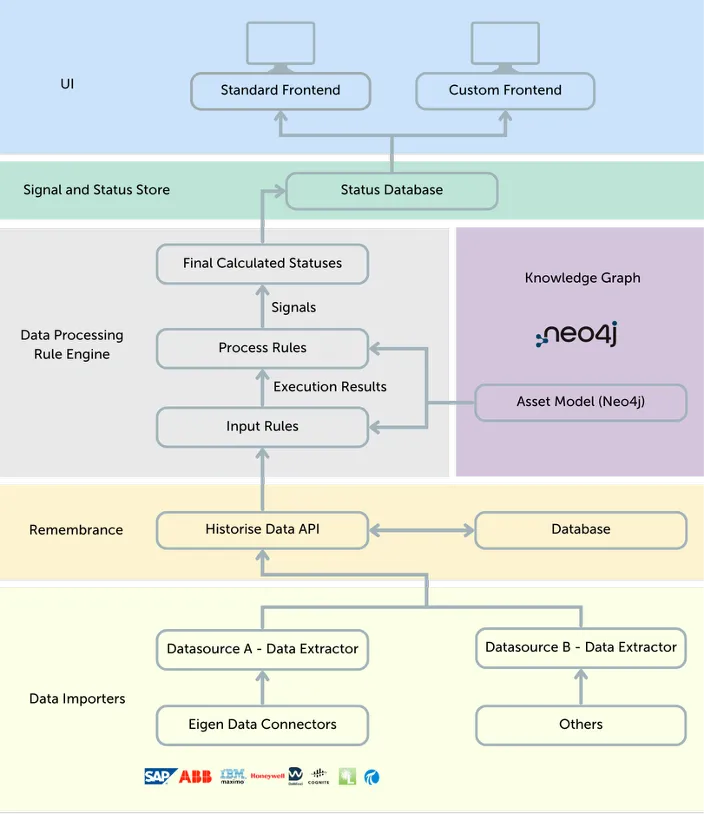
Section titled “High-level overview of how it works.”The BSP architecture consists of four primary components:
-
Data Connectors (Extractors): Agents that pull data from source systems and convert it into the standardized BSP Signal Format. A wide range of Connectors already exist and other Connectors can be built for any system containing BSP-related data, including maintenance management systems, safety observation platforms, and data lakes.
-
Knowledge Graph: A graph database representing the digital model of the asset, showing all nodes (Barriers, Elements, Tags) and their complex relationships. Both physical elements (e.g. a pressure transmitter) and abstract concepts (e.g. a barrier function) are represented here.
-
Business Rules: A sophisticated logic layer that interprets signals. These rules are recursive: a rule’s output (a message) can become an input for another rule, allowing for complex aggregations and counts over time.
-
User Interface: The interactive, web-based dashboard displaying the barrier model’s health typically using a traffic-light colour code and/or scores indicating the level of impairment. Users can navigate from high-level overviews down to individual signals and their source records and can view both the current and historical state of any element in the model.
Different BSP Configurations
Section titled “Different BSP Configurations”The BSP is a configured application, meaning that while the underlying platform, concepts, and components are consistent across all deployments, the specific layout, pages, and visual presentation of any given installation will reflect the needs of the facility it has been built for.
Different facilities have different hazard profiles, different organisational structures, and different source systems. As a result, no two BSP deployments will look identical. One installation may present an asset overview using a detailed plot plan diagram; another may use a schematic drawing or a simplified zone map. One may include a dedicated Wells page; another may not. The colour thresholds that define green, amber, and red status may be calibrated differently depending on the operating company’s policies and there may be different shades of colour to distinguish between types of barriers (for example operational vs technical barriers)
However, the core components that make up the interface are consistent. A sunburst in one deployment works the same way as a sunburst in another. A scoring table, a trend chart, a filter bar, or a common menu will present the same type of data and behave in the same way regardless of which facility you are looking at. Once you are familiar with the components and concepts described in this manual, you will be able to navigate and interpret any BSP deployment.
Different pages within the same deployment may also use different combinations of these components. An area page might include a sunburst, a scoring table, and a trend chart. A performance standards page might include a table and a trend chart but no sunburst. The components present on any given page are those most appropriate for the type of data being displayed.
If you have questions about a specific deployment for example, why a particular page or component is not present, or why the layout differs from what is described here please contact Eigen directly:
Email: info@eigen.co
Web: eigen.co